
Method 1: Using Scout Diagnostics Directly
-
Open Scout Diagnostics
- Click Scout Diagnostics. The Scout software will close, and the diagnostic tool will load.
-
Run Driver Check
- Press Start.
-
Confirm that the following components show green checkmarks:
- Visual Camera
- Thermal Camera
- Thermal Virtual Driver
- Thermal Driver
- If any drivers report errors, install them from the software directory.
- For additional assistance, go to: https://guides.woundvision.com/fix-it-now
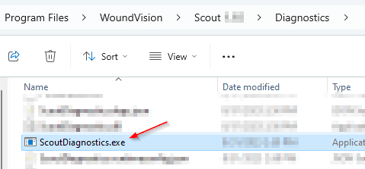
Note: A technical resource without access to the Scout software can open the tool from C:\Program Files\WoundVision\Scout xxx\Diagnostics and launch the ScoutDiagnostics.exe file.
Method 2: Launching Diagnostics from Scout Software
-
Open Scout Software Application
- Launch the Scout application.
- Click the Help button in the top-right corner.
-
Start Diagnostics
- Wait for the application window to appear.
- Navigate to DIAGNOSTICS → START.
- The tool will run checks, including your graphics adapter and other components.
Step 3: Capture Results
Once diagnostics are complete:
- Take a screenshot of this section and include it with your support ticket.
Comments
0 comments
Please sign in to leave a comment.